
6 Ways to Download YouTube Videos on Chromebook
Chromebooks are engineered for a cloud-first experience, relying heavily on constant internet connectivity to function optimally. While this maximizes security and speed, it leaves you stuck when you go offline. For students dealing with restrictive school firewalls, travelers on long-haul flights, or users in areas with spotty bandwidth, the inability to buffer YouTube videos is a major limitation. To work around this, users must bypass the browser’s streaming protocols and store MP4 or MKV files directly on the device's local solid-state drive.

However, the process differs significantly from traditional PC operating systems. ChromeOS presents a specific technical hurdle: it does not support standard Windows executables (.exe) or Mac disk images (.dmg). Consequently, the legacy software tools used on other laptops will not function here. Instead, ChromeOS users must leverage ChromeOS's built-in options to manage offline media.
To successfully download content, you must use one of the three available subsystems on your device:
- The Web Layer: Using browser-based converters for instant, installation-free results.
- The Android Subsystem: Running mobile applications (APK files) originally designed for phones and tablets.
- The Linux Development Environment: Unlocking desktop-grade, open-source software for advanced file management.
This guide provides a step-by-step guide through these methods, ranging from simple "no-install" web solutions to professional-grade Linux applications capable of archiving entire playlists in 4K resolution.
Method 1: The Web Layer (Best for Speed)
For the vast majority of Chromebook users, utilizing a web-based converter is the most efficient method for offline video storage. ChromeOS is architected as a "cloud-first" operating system, often shipping with limited local storage (32GB or 64GB eMMC). Consequently, installing heavy software suites contradicts the lightweight design of the hardware.
Web-based tools function entirely within the Chrome browser, eliminating the need for Linux containers or "Developer Mode" modifications. They process the video conversion on external servers, ensuring your Chromebook's limited RAM and CPU resources are not monopolized during the process.
Primary Recommendation: Lynote
Lynote YouTube Video Downloader is currently the premier solution for ChromeOS environments. Unlike many legacy downloading sites that rely on deceptive "Download" buttons or aggressive redirect scripts, this tool offers a clean, streamlined interface optimized for the Chrome browser. It supports high-bitrate extractions without requiring user registration or extension installation.
Step-by-Step Guide:
- Retrieve the Source URL: Navigate to the target YouTube video. Click the address bar (Omnibox) to highlight the link and press Ctrl + C to copy it to your clipboard.

Image Source: ExoticCarspotters / via YouTube
- Input and Parse: Open Lynote in a new tab. Click inside the input field and press Ctrl + V to paste the link. The tool will automatically fetch the video metadata (title and duration).

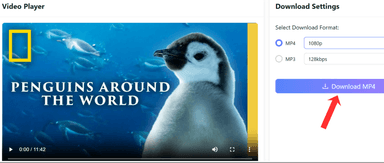
- Select Quality and Download: A list of available resolutions will appear. Select your desired quality (e.g., 1080p MP4) and click the "Download" button. The file will save directly to your My Files > Downloads folder.


Competitor Landscape
While Lynote is the recommended choice for stability and safety, other legacy tools exist in the ecosystem.
- Y2Mate: This is been around for years. It offers broad format support, including obscure formats like 3GP and WMV. However, the pop-ups and redirects are aggressiveand redirects to betting or gaming sites upon clicking the download button.

- SaveFrom.net: Famous for its URL shortcut trick (adding "ss" before "youtube.com"), SaveFrom is reliable for low-resolution clips. However, it has a major limitation: it often cannot merge audio and video streams for 1080p files or higher without a helper extension. Users frequently encounter "silent" video files when attempting to download High Definition content.

Performance Comparison: Resolution & User Experience
The following table benchmarks the top web-based tools based on maximum output resolution and the intrusiveness of their monetization (ads).
| Feature | Lynote | Y2Mate | SaveFrom.net |
|---|---|---|---|
| Max Resolution (Free) | 4K / 1080p | 1080p | 720p (Limited) |
| Ad-Intrusiveness | Low / None | High (Pop-ups & Redirects) | Moderate (Push Notifications) |
| Audio/Video Merging | Automatic | Automatic | Manual (Requires Add-on for 1080p+) |
| ChromeOS Stability | Native / High | Moderate (Heavy Scripting) | High |
Technical Note on Resolutions: Many web-based tools cap downloads at 720p or 1080p because YouTube separates audio and video tracks for higher resolutions (DASH streams). Tools like Lynote combine the separate audio and video tracks on their servers into a single MP4 file, whereas competitors like SaveFrom often shift this burden to the user.
Method 2: The Linux Development Environment (Best for Power Users)
While web-based tools offer immediacy, they often fall short for users who need to download entire playlists, extract subtitles, or save content in 4K and 8K resolution. These tools frequently time out during large file transfers and lack batch processing capabilities. To bypass these limitations, you must use the Linux Development Environment (Crostini) built into ChromeOS.
ChromeOS is effectively a polished interface running on top of a Linux kernel. By enabling this environment, you unlock access to desktop-class software that rivals programs found on Windows or macOS. This method requires a slightly higher technical setup but offers the most powerful downloads available on a Chromebook.
Top Recommendation: 4K Video Downloader+ (Linux Version)
4K Video Downloader+ is one of the best options for desktop video retrieval. Unlike command-line tools that require coding knowledge, this software provides a clean, modern Graphical User Interface (GUI) while maintaining powerful backend performance.
Why it stands out for ChromeOS:
- Stability: It runs locally on your machine, eliminating browser crashes during long downloads.
- Resolution Support: It is one of the few tools capable of parsing and downloading 8K video streams and 360-degree virtual reality content.
- Smart Mode: Users can set specific preferences (e.g., MP4, 1080p, Subtitles On) and apply them to all future downloads with a single click.
- Native Support: The developers provide a .deb installer file, which is the native package format for ChromeOS Linux (Debian).
Step-by-Step Installation Guide
Follow these instructions to install the full desktop version of 4K Video Downloader+ on your Chromebook.
Step 1. Turn on Linux: Before installing the app, you must turn on the Linux container.
- Open your Chromebook Settings (click the clock in the bottom right corner > gear icon).

Image Source: Chrome OS Made Simple / via YouTube
- On the left sidebar, click Advanced to expand the menu, then select Developers.
- Locate the "Linux development environment" tab and click Turn On.

Image Source: Chrome OS Made Simple / via YouTube
- Follow the on-screen prompts to set your username and disk size (the default 10GB is usually sufficient for the app, but increase this if you plan to store massive video files locally).
- Wait for the installation to finish. A terminal window will open; you can minimize or close this for now.

Image Source: Chrome OS Made Simple / via YouTube
Step 2. Download and Install the Software
- Navigate to the official 4K Download website.

- Go to the "Downloads" section.
- Locate 4K Video Downloader+ and click the download link for Ubuntu/Linux.

- Crucial: Ensure you download the Microsoft Installer Package (.deb) file. Do not download the portable tarball or Snap version, as the .deb file allows for seamless integration with ChromeOS.
- Once the download is complete, open the Files app on your Chromebook.
- Go to your Downloads folder and find the 4kvideodownloaderplus.deb file.
- Right-click (or two-finger tap) the file and select "Install with Linux".
- A confirmation window will appear displaying the app information. Click Install.
Step 3. Launching the Application Once the installation bar completes, the app is ready. Press the Search/Launcher key on your keyboard and type "4K Video Downloader." You will also find it located in a folder named "Linux apps" in your app drawer. You can now copy any YouTube URL and click "Paste Link" inside the software to begin downloading.
Alternative Professional Tools
While 4K Video Downloader+ is the most user-friendly option, the Linux ecosystem offers other powerful alternatives for specific use cases.
1. JDownloader 2 (The Open Source Powerhouse)
JDownloader 2 is a legendary tool in the downloading community. It is free, open-source, and capable of grabbing media from practically any hosting site on the internet, not just YouTube.

- Pros: It excels at "Link Grabbing." If you copy a YouTube link, JDownloader detects every component available—video, audio, thumbnail, and description text—and lets you choose exactly what to save. It also supports automated CAPTCHA solving and bandwidth management.
- Cons: The User Interface is Java-based and looks dated. It is dense with menus and settings, presenting a steep learning curve for beginners.
- ChromeOS Context: Installing JDownloader 2 often requires installing a Java Runtime Environment (JRE) via the Linux terminal first, making it significantly harder to set up than the .deb method used above.
2. Tartube (The Archivist’s Choice)
Tartube is a graphical front-end for the command-line tools youtube-dl and yt-dlp. It is designed for digital hoarders and archivists who want to mirror entire channels.

- Pros: Its "Check for New Videos" feature allows you to subscribe to channels within the software. It will automatically download only the new videos uploaded since your last sync. It creates an organized library of content on your drive.
- Cons: It is strictly utilitarian. The interface is functional but lacks polish. Setting up the dependencies (FFmpeg, Python) in the ChromeOS Linux container can be prone to errors if you are not comfortable with the command line.
Comparison: Linux Video Downloaders on ChromeOS
When choosing between professional Linux-based software, consider the trade-off between ease of installation and granular control.
| Feature | 4K Video Downloader+ | JDownloader 2 | Tartube |
|---|---|---|---|
| Cost | Free / $25-$45 | Free (Open Source) | Free (Open Source) |
| ChromeOS Install | Easy (Native .deb file) | Hard (Requires Java setup) | Medium/Hard (Dependency management) |
| UI Experience | Modern & Clean | Cluttered & Technical | Utilitarian |
| Playlist Support | Excellent (One-click) | Granular (Select per file) | Excellent (Auto-sync) |
| Best For... | General users wanting high quality | Power users downloading from mixed sources | Archivists mirroring channels |
Verdict: For 95% of Chromebook users, 4K Video Downloader+ is the correct choice. It use the Linux container to bypass browser restrictions but installs as easily as a standard application. Only opt for JDownloader 2 or Tartube if you require specific automation features or wish to avoid paid software licenses entirely.
Method 3: The Android Subsystem (Best for Touchscreens)
If the Linux environment feels too technical, or if you are using a Chromebook tablet, running mobile applications is often the most intuitive way to manage media. Since modern Chromebooks share the same architecture as Android tablets, this method provides a native, touch-friendly experience that integrates directly with your device's notification center and media controls.
However, there is a significant limitation: Google strictly prohibits YouTube video downloaders on the official Google Play Store due to Terms of Service violations. To access these tools, users must bypass the Play Store and "sideload" applications using APK files (Android Package Kits).
Top Pick: NewPipe
NewPipe is one of the best alternatives to the YouTube app for privacy-conscious users. Unlike standard downloaders, it is a full client replacement that parses the YouTube website directly to extract video and audio streams. It contains no proprietary Google code, requires no account login, and is completely ad-free.
To install NewPipe, you must enable the ability to install applications from sources other than the Play Store.
Step-by-Step Guide: How to Sideload NewPipe
Note: This process typically requires your Chromebook to be in Developer Mode, which will powerwash (factory reset) your device. Ensure all local data is backed up before proceeding.
- Enable Developer Mode:
- Turn off your Chromebook.
- Hold Esc + Refresh and tap the Power button.

Image Source: Gauging Gadgets / via YouTube
- When the recovery screen appears, press Ctrl + D, then Enter. The device will wipe local data and reboot into Developer Mode.

Image Source: Gauging Gadgets / via YouTube
- Enable Unknown Sources:
- Once set up, navigate to Settings > Apps > Google Play Store > Manage Android Preferences.
- Go to Security (or "Device" on some versions) and toggle Unknown sources to "On".

- Download and Install:
- Open the Chrome browser and navigate to the official NewPipe website or F-Droid repository.

- Download the latest .apk file.
- Open the "Files" app, locate the APK in your Downloads folder, and double-click it.
- Select Install when the prompt appears.
Alternative Android Downloaders
While NewPipe is the gold standard for stability, other applications cater to specific aesthetic preferences or legacy user habits.
1. TubeMate (The Legacy Choice) TubeMate is one of the oldest YouTube downloaders in the Android ecosystem. It is renowned for its raw speed and ability to force multiple connections to accelerate downloads.

- Pros: Extremely fast download speeds; supports a wide variety of video sites beyond YouTube.
- Cons: The user interface is dated and cluttered. Unlike NewPipe, TubeMate is ad-supported, which can be intrusive on the larger screen of a Chromebook.
2. Seal (The Modern Aesthetic) Seal is a newer entrant that use yt-dlp (a command-line media downloader) wrapped in a modern, Material You interface. It is arguably the best-looking downloader available for ChromeOS.
- Pros: Dynamic theming that matches your wallpaper; clean, minimalist UI; supports advanced command templates for power users.
- Cons: Slightly higher battery consumption during processing compared to NewPipe.
Performance Data: Battery & Background Play
When running Android apps on ChromeOS, resource management is critical. Below is a comparison of how these apps handle background tasks and power consumption during a 1-hour 1080p playback session.
| Metric | NewPipe | TubeMate | Seal |
|---|---|---|---|
| Background Play | Native (Picture-in-Picture supported) | Supported (Requires settings toggle) | Native (Picture-in-Picture supported) |
| Battery Impact | Low (~8% per hour) | Medium (~12% per hour due to ads) | Medium-High (~14% per hour) |
| Ad-Intrusiveness | None (0 Ads) | High (Banner & Pop-up Ads) | None (0 Ads) |
NewPipe demonstrates the highest efficiency because it lacks the ad-serving background processes found in TubeMate and the heavy UI rendering of Seal. For users prioritizing battery life during long flights or commutes, NewPipe remains the optimal choice.
Method 4: Browser Extensions (The Workaround)
Beyond standalone apps, some users prefer to integrate downloading directly into the browser experience. However, Google restricts the Chrome Web Store from hosting extensions that download videos directly from YouTube. Because Google owns both the browser platform and the streaming service, any extension that facilitates downloading is flagged for Terms of Service violations and removed.
To bypass this restriction on a Chromebook, the most effective method is using a Userscript Manager. This approach injects a specific script into the YouTube webpage to create a download button, effectively circumventing the browser's native restrictions.
Workaround: Tampermonkey + Userscripts
Tampermonkey is the most popular userscript manager, allowing you to run custom JavaScript on specific websites. It is safe, widely used by developers, and available directly in the Chrome Web Store because the extension itself is neutral; it is the script you add later that performs the download.
How to set up a Local YouTube Downloader:
- Install Tampermonkey: Navigate to the Chrome Web Store, search for "Tampermonkey," and click Add to Chrome.

- Find a Script: Visit a reputable script repository like Greasy Fork. Search for "Local YouTube Downloader" or "YouTube Video Downloader." Look for scripts with high install counts and recent updates to ensure compatibility with YouTube's latest player layout.

- Install the Script: Click the "Install this script" button. Tampermonkey will open a new tab showing the code; confirm the installation.

- Download: Refresh your YouTube video page. You will now see a new "Download" button or link injected directly into the video player interface (usually next to the Like/Share buttons). Clicking this allows you to save the MP4 file directly to your Chromebook's Downloads folder.

Alternative: Foxified (Not Recommended)
Some power users attempt to use extensions like CrosPilot or Foxified to install Firefox add-ons on ChromeOS. Since the Mozilla Add-ons store allows YouTube downloaders, the theory is that "porting" them to Chrome will enable the functionality.
However, this method is highly unstable on Chromebooks. Firefox extensions rely on specific APIs that are often incompatible with the Chromium engine. Users frequently report that the ported extensions crash the browser, fail to detect video streams, or corrupt the downloaded files. Compared to the stability of the Tampermonkey script method, the "Foxified" workaround involves significantly more troubleshooting for a lower success rate.
Method 5: YouTube Premium (The Official Method)

All methods discussed so far involve third-party tools. However, for users seeking the easiest option and legal compliance, YouTube Premium is the only official way for offline viewing. On ChromeOS, this functionality is best use through the YouTube Android app available via the Google Play Store, rather than the standard browser interface.
Treating this service as a software utility, it offers the highest level of stability and user experience (UX) but imposes the strictest limitations on file utility.
Pros
- Zero Friction: The "Download" button is integrated directly into the video player interface. There is no need to copy URLs, manage third-party repositories, or navigate pop-up ads.
- Legal Compliance: This is the only method that strictly adheres to YouTube's Terms of Service. It ensures creators are monetized for offline views, making it the most ethical choice.
- Ad-Free Environment: The subscription eliminates pre-roll and mid-roll advertisements, improving the viewing experience significantly.
Cons
- DRM Encryption: This is a critical limitation for technical users. Videos are saved as encrypted cache files restricted to the YouTube app. You cannot locate a .mp4 file in your Chromebook's "Downloads" folder, move the file to a USB drive, or import it into video editing software like LumaFusion.
- Recurring Expense: Unlike free online tools or one-time purchase software, this requires a perpetual monthly subscription (currently standardizing around $13.99/month).
- 30-Day Validation: Downloads expire if the device does not connect to the internet at least once every 30 days.
Verdict YouTube Premium is the superior choice for casual consumers who need reliable offline content for travel or commutes and have no intention of remixing, archiving, or transferring the footage. However, for content creators and archivists requiring raw, transferable video files, this method is non-viable.
Comparative Analysis & FAQ
Choosing the right method for ChromeOS involves balancing convenience against functionality. The following comparison breaks down the technical requirements and capabilities of the four primary methods discussed:
| Method | Setup Difficulty | Cost | Max Resolution | Batch Downloading |
|---|---|---|---|---|
| Lynote | None (Instant) | Free | Up to 4K | Single File Only |
| 4K Video Downloader+ | High (Requires Linux) | Free / $25-$45 | Up to 8K | Yes (Full Playlists) |
| NewPipe (Android) | Medium (Sideloading) | Free (Open Source) | Up to 1080p+ | Queue System |
| YouTube Premium | Low (Account Login) | ~$13.99/mo | 1080p (DRM Encrypted) | Yes (Smart Downloads) |
Frequently Asked Questions
Where do downloaded videos go on Chromebook? The location of your video files depends entirely on the method used to download them. ChromeOS segregates files based on the source:
- Browser & Online Tools: If you used a web-based downloader, the file resides in the standard Downloads folder. Open the Files app and navigate to My files > Downloads.
- Linux Software: Applications like 4K Video Downloader+ run inside a virtual container. These files are not in the standard Downloads folder. You must open the Files app and click on the Linux files tab on the left sidebar.
- Android Apps: Files downloaded via apps like NewPipe usually land in My files > Play files > Movies or Music, depending on the format.
Can I save directly to Google Drive? Yes, saving directly to the cloud is a key advantage of ChromeOS.
- For Web Downloads: When the "Save As" dialog appears, simply select Google Drive from the left-hand menu instead of the local Downloads folder.
- For Linux Apps: This requires an extra step. You must right-click your Google Drive folder in the Files app and select "Share with Linux." Once shared, the Linux software can access the drive via /mnt/chromeos/Google Drive/.
Is it safe to enable Linux mode on Chromebook? Yes, enabling the Linux development environment (Crostini) is safe and is an official Google feature, not a "jailbreak." Linux runs in a secure container (Virtual Machine), meaning if you accidentally install a corrupted file or virus within Linux, it is isolated and cannot damage the main ChromeOS operating system. If the Linux environment becomes cluttered or unstable, you can simply "Turn Off" Linux in settings to wipe the container clean without losing any data on your actual Chromebook.
Can I download it on a school Chromebook? School-managed Chromebooks often block Linux and Android sideloading. Browser-based tools like Lynote are your best option—they work without any installation or special permissions
Conclusion
ChromeOS has come a long way from 'just a web browser.' With Linux containers and Android apps, you can handle serious media downloads:
Quick download, no setup? Use Lynote, paste the link, and grab your file.
Archiving playlists or need 8K? Enable Linux and install 4K Video Downloader+.
Prefer a touch-friendly app? Sideload NewPipe for an ad-free experience.
Want zero hassle and don't mind paying? YouTube Premium works—just note the DRM restrictions.
Pick what fits your workflow.