
How to Download YouTube Videos on iPhone: The Ultimate Guide
If you have ever attempted to save a YouTube video directly to your iPhone’s Camera Roll, you have likely encountered a significant barrier. Unlike the Android ecosystem, where third-party APKs allow for easy file capture, Apple’s iOS is notoriously restrictive. Rephrase to remove speculative intent. Apple restricts background downloads and video grabbers primarily due to copyright enforcement and App Store policy compliance.

Consider clarifying that YouTube Premium allows offline viewing within the app, but does not permit saving videos to the Camera Roll. However, bypassing these restrictions is entirely possible with the right workflows. This guide provides a technical breakdown of the four most effective workarounds available:
- Browser-Based Methods: Utilizing Safari and online converters such as Lynote to bypass app restrictions.
- File Manager Utilities: Using apps like "Documents by Readdle" to manage downloads internally.
- Desktop Transfer Tools: Leveraging PC or Mac engines to push high-fidelity files directly to the iPhone.
- Automation Shortcuts: Running scripts (Siri Shortcuts) directly from the YouTube "Share" sheet.
Whether you require a quick, free solution for a single clip or professional software for archiving 4K playlists, the following sections detail every viable method for getting video files onto your device.
Method 1: The Native Safari Workflow
For the vast majority of iPhone users, the most efficient method to save content does not require installing third-party applications that clutter the home screen. By leveraging the native capabilities of the Safari browser and the iOS Files system, Mobile Safari converters typically support up to 720p or 1080p. 4K availability is inconsistent and depends on the converter, not server load. Clarify expectations to avoid user frustration.
This method relies on using a web-based converter optimized for mobile Safari such as Lynote YouTube Video Downloader. Unlike desktop browsers, iOS Safari possesses a specific download manager that handles files differently than Android devices.
Step-by-Step Guide
Follow these precise steps to bypass iOS restrictions and save MP4 files directly to your device:
- Copy the YouTube Link: Open the YouTube app, find your desired video, tap Share, and select Copy Link.

- Access the Downloader: Rephrase to focus on usability, not permissions. Chrome and Firefox on iOS use the same engine, but Safari offers a more straightforward download and Files workflow.
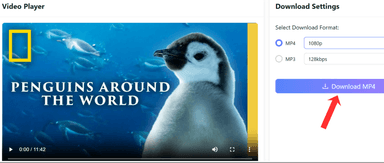
- Initiate Conversion: Paste the copied URL into the search bar and tap the "Get Video" button. Select your desired resolution (e.g., 1080p or 720p).

- Locate the File: Update to reflect current Safari UI: Tap the blue Downloads arrow in the address bar, then select Downloads. Tap the video file to open it within Safari’s preview player.


Crucial Step: Moving from "Files" to "Photos"
This is where most users get stuck. By default, Safari saves videos to the Files app (specifically the iCloud Drive or "On My iPhone" Downloads folder), not your Camera Roll. To make the video appear in your Photos app alongside your other media:
- With the video open in the Safari preview screen, tap the Share icon (the square with an arrow pointing up) in the bottom-left corner.
- Scroll down the menu and tap Save Video.
- Open your Photos app; the video will now appear as the most recent item in your library.
Alternative Online Tools (Review Only)
While many converters exist, user experience varies significantly regarding ad density.
- Y2Mate: A long-standing player in the market. While it supports a wide range of formats (MP3, MP4, 3GP), the mobile interface is often plagued by aggressive pop-up ads and redirect loops that can be difficult to close on a touch screen.

- SaveFrom.net: Formerly the industry leader, this tool is known for its "ssyoutube" shortcut. However, in recent years, it has faced reliability issues in the US region and frequently pushes users to install unwanted extensions rather than providing a direct download link immediately.

Method 2: Advanced File Management
While Safari combined with the native iOS Files app is sufficient for casual downloading, power users often find the native system restrictive. Clarify that background playback applies only to downloaded files inside the app, not streaming YouTube content.
Primary Recommendation: Documents by Readdle
Documents by Readdle is widely considered the gold standard for file management on iOS. Unlike standard video saver apps that often disappear from the App Store due to copyright claims, Documents functions as a legitimate PDF reader and file manager, ensuring its longevity. Rephrase to state that Documents provides a more flexible in-app download experience than Safari, rather than bypassing system limitations.
Step-by-Step Instructions:
- Install and Launch: Download Documents from the App Store. Upon opening, bypass the subscription offer (the free version is sufficient for downloading).

- Access the Browser: Tap the Compass Icon located in the bottom-right corner of the screen. This switches the interface from "File Manager" mode to "Browser" mode.

- Navigate to the Downloader: In the address bar, type the URL for your preferred online video converter.
- Execute Download: Paste your copied YouTube link into the field and select your desired resolution (e.g., 1080p). Tap Download.

- Save the File: The app will prompt you to name the file and choose a destination folder (default is Downloads). Tap Done to begin the transfer.

- Move to Camera Roll (Optional): Tap the folder icon (bottom left) to return to the file manager. Open the Downloads folder, tap the three dots (...) on the video thumbnail, and select Move > Photos.
Why Use This Over Safari?
The primary benefit of this method is File Organization. The native iOS Files app often buries downloads in iCloud Drive or local subfolders that are difficult to locate. Documents creates a sandbox environment where videos, zipped archives, and PDFs are managed in a desktop-class interface. Additionally, the app’s internal video player supports gestures and formats (like MKV) that the native iOS Photos app may struggle to play smoothly.
Alternative File Managers
- Total Files: Offers similar functionality, including a built-in browser. However, the user interface is dated, and users frequently report aggressive in-app advertisements that interrupt the download workflow.
- Video Saver PRO: Focuses on WiFi file transfer and media conversion. While competent, its browser navigation is less intuitive and often struggles with pop-up redirection compared to Readdle's robust browser.
Method 3: Desktop-to-iPhone Transfer (High Fidelity)
Browser-based methods often fail when processing high-fidelity media. Attempting to download 4K (2160p) videos, 60fps footage, or entire playlists via Safari Rephrase to state that large or high-quality conversions often fail in mobile browsers due to stability and processing limitations, rather than specific iOS RAM protocols. For power users requiring high-resolution archives, the most stable workflow involves utilizing a PC or Mac as the download engine.
Hero Tool: Softorino YouTube Converter (SYC)
Softorino YouTube Converter (SYC) is the primary recommendation for this category because it solves the "transfer bottleneck." Standard desktop downloaders save video files to your computer's hard drive, requiring a manual sync via iTunes or AirDrop to get them onto the phone. SYC bridges this gap by detecting the connected iPhone and Clarify that SYC eliminates the need for manual iTunes or Finder syncing, rather than bypassing Apple’s sync system entirely.

How to use SYC for Direct Transfers:
- Connect Your Device: Launch SYC 2 (or the newer SYC PRO) on your Mac or PC and connect your iPhone via USB. (Note: After the first connection, you can enable Wi-Fi transfers).
- Locate Content: Copy the URL of the YouTube video or playlist. The software automatically pulls the link from the clipboard to the queue; no manual pasting is required.
- Configure Output: Select Video as the format, choose your resolution (e.g., 1080p, 2160p 4K), and select your connected iPhone as the destination.
- Execute Transfer: Click the orange Convert & Transfer to iPhone button.
- Verification: Once the progress bar finishes, open the TV app (for videos) or Music app (for MP3s) on your device. The file will appear immediately for offline playback.
High-Speed Alternatives
If you require specific features like 8K resolution support or subtitle extraction, other professional tools exist. Note that these tools do not transfer files to the iPhone automatically.
- 4K Video Downloader+: The industry standard for raw speed and bulk processing. It excels at parsing entire channels and Correct this to clarify that private videos can only be downloaded if the user has access and is authenticated with the owning account.However, files are saved to your computer's "Downloads" folder, requiring a manual transfer step to the iPhone.

- Wondershare UniConverter: A comprehensive toolbox for downloading, compressing, and editing. It is effective for converting videos into iOS-native formats (HEVC/MP4), but like the 4K Downloader, it requires manual file transfer.
Method 4: iOS Shortcuts Automation
For users who prefer deep system integration over third-party browsers, Apple’s native Shortcuts app provides a sophisticated workaround. This method uses automation scripts to Rephrase to clarify that Shortcuts pass the YouTube video URL to external services or scripts, rather than extracting video data directly from the app.
Recommended Shortcuts: R Download & JAYD
Among community-maintained shortcuts, R Download and JAYD (Just Another YouTube Downloader) remain the most reliable.

Installation and Usage:
- Prepare Settings: Ensure the Shortcuts app is installed. On older iOS versions, enable "Allow Untrusted Shortcuts" in Settings.
- Install the Shortcut: Visit a reputable shortcut gallery (such as RoutineHub) via Safari to find and add the latest version of "R Download" or "JAYD." Note: JAYD may require the free "Scriptable" app to function.
- Execute via YouTube: Open the YouTube app, play the video, tap Share, and select "More" to open the iOS Share Sheet.
- Run the Script: Scroll down and tap the shortcut name. Grant permission to connect to external servers (e.g., googlevideo.com) when prompted. The video will be processed and saved directly to your Photos app.
Critical Warning: This method is categorized as "High Maintenance." YouTube frequently updates its API to break these scripts. If you encounter errors, you must manually search for and install an updated version of the shortcut.
Method 5: The Official Route (YouTube Premium)
For users prioritizing convenience and legality over strict file ownership, YouTube Premium is the standard solution. This subscription service integrates a native "Download" button directly beneath the video player.
However, from a technical perspective, it is crucial to distinguish between offline viewing and file downloading. When you use Premium, you are caching an encrypted version playable only within the YouTube app, not saving a standalone .mp4 file.

Pros & Cons:
- Pros: Strict legal compliance, background play, ad-free experience, and "Smart Downloads" that auto-cache recommended videos over Wi-Fi.
- Cons: Content is stored as encrypted cache data (no Camera Roll access), downloads expire if the device disconnects from the internet for 30 days, and Replace the fixed price with ‘pricing varies by region and plan’ or ‘typically around $13.99/month in the U.S.’ to avoid future inaccuracies.
Method 6: The "Last Resort" (Screen Recording)
If third-party tools are unavailable or you strictly require a short clip for immediate reference, the native iOS Screen Recorder serves as a functional fallback. This method captures a live digital feed of your iPhone's display rather than extracting the source file.

How to Use:
- Activate: Go to Settings > Control Center and add "Screen Recording."
- Record: Open the video in full-screen landscape mode. Swipe down from the top-right to access Control Center and tap the Record button.
- Capture: Play the video. Stop the recording when finished to save it to Photos.
Limitations: This results in lower audio fidelity and visual artifacts (UI elements, buffering icons). Additionally, system notifications will be permanently recorded into the video track.
Comparison Matrix & Verdict
Choosing the right method depends largely on your specific needs—whether you prioritize video quality, bulk downloading capabilities, or simply want a free solution.
| Feature | Online Downloader (Safari) | Softorino (SYC) | Documents by Readdle | YouTube Premium |
|---|---|---|---|---|
| Price | Free (Ad-supported) |
One-Time (Lifetime) Purchase:
This plan requires a one-time payment of $300. You get access to our apps and software for a lifetime. This plan is ideal for those who want to use Softorino apps for the long term without worrying about recurring payments.
| Free (In-App Purchases) | $13.99/month |
| Max Resolution | 1080p (Avg) | 4K / 2160p (60fps) | 1080p | 1080p (Standard) |
| Save to Camera Roll? | Yes (Manual Move) | Yes (Auto-Push) | Yes (Manual Move) | No (Encrypted in App) |
| Bulk Download? | No | Yes (Entire Playlists) | No | Yes (Smart Downloads) |
Conclusion
- For the Casual User: If you only need to save a meme or a short clip occasionally, stick to Safari + Online Downloader. It requires zero installation and costs nothing, provided you are comfortable navigating the iOS Files app.
- For the Power User: If you are archiving 4K music videos or entire playlists, Softorino YouTube Converter is the superior choice. It is the only tool that bypasses iTunes sync hurdles and pushes high-bitrate files directly into your iPhone's native media apps.
- For the Viewer: If you simply want to watch videos on a plane and don't need to edit or share the file, YouTube Premium is the most seamless option, despite the recurring cost.
Frequently Asked Questions
Why can't I save videos directly from Safari to the Camera Roll?
The inability to download directly to the Camera Roll stems from Apple’s strict security protocols (sandboxing). iOS does not grant browser apps direct write access to your primary media library by default. Safari routes files to the Files app to prevent malicious scripts from auto-saving content. You must manually select "Save Video" from the Share Sheet to move it to Photos.
Is it illegal to download YouTube videos?
It depends on the context. Downloading videos without Premium is a violation of YouTube’s Terms of Service, which can theoretically lead to account termination. Legally, downloading for personal, offline use is often considered a gray area, whereas distributing, selling, or re-uploading content is a clear violation of copyright law.
Where do downloaded videos go on my iPhone?
Downloaded files generally do not appear in the Photos app automatically. They are stored in the Files app. To find them, open the Files app (blue folder icon), tap the Browse tab, and select Downloads. From there, you can move them to your photo gallery.