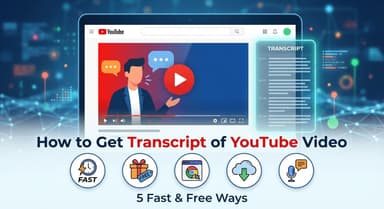

How to See Transcript on YouTube: 5 Fast Methods (Free & Native)
You are watching a video and need to grab a specific quote, or maybe you just want to read the content without sitting through the full runtime. Knowing how to see transcript on YouTube can save you hours of scrubbing through timelines.

Whether you are on a computer, using the mobile app, or looking for a clean way to download the text, the "best" method depends on your goal. Do you just want to read along, or do you need to copy-paste the text?
Quick Verdict: What is the Best Way to Get Transcripts?
If you want to save time, here is the cheat sheet.
| Method | Best For... | Speed | Text Cleanliness |
|---|---|---|---|
| Online Generator (Lynote) | Copying & Exporting. The only way to get full text without timestamps or formatting errors. | Fastest | High (Clean paragraphs) |
| Native Feature (Desktop) | Watching. Best for checking a specific sentence while the video plays. | Instant | Low (Cluttered with timestamps) |
| Mobile App (iOS/Android) | On-the-Go. Best for reading along on a phone. | Medium | N/A (Cannot copy text) |
| Browser Extensions | Power Users. Best if you need transcripts for every single video you watch. | Fast | High |
Which Method Should You Choose?
- Use an Online Tool (Lynote) if: You are a student, researcher, or content creator. If you need to summarize the video, quote it, or turn it into a blog post, this is the only method that gives you clean, formatted text ready to use immediately.
- Use the Native Feature if: You are just curious about a specific word the speaker said. It is perfect for "Ctrl+F" searching to find a moment in the video, but copying this text results in a broken mess of time codes and line breaks.
- Use the Mobile App if: You are away from your computer. It allows you to read along, but you cannot export the text.
Part 1: The Best Online Transcript Generators (No Install)
If you need to extract text for notes or social media, the native YouTube interface is frustrating. Copying text directly from YouTube usually results in a formatting nightmare, pasting unwanted timestamps and weird line breaks alongside every sentence.
The fastest solution is a dedicated online transcript generator. These tools strip away the clutter and give you raw, usable text instantly—without requiring you to install software or log in.
The Champion: Lynote YouTube Transcript Generator

Lynote is built for speed and readability. Unlike the default YouTube panel, which forces you to manually highlight text while scrolling, Lynote extracts the entire script in seconds and formats it into readable paragraphs.
Here is the fastest way to get your transcript:
- Copy the URL of the YouTube video (from the address bar or the "Share" button).
- Go to the Lynote YouTube Transcript Generator tool.
- Paste the link into the search bar and click "Generate."
- Use the "One-Click Copy" button to grab the text, or click "Export as TXT" to save it as a file.

Why this is better: The standout feature is formatting control. Native YouTube transcripts are "hard-coded" with timestamps that are difficult to remove in bulk. Lynote preserves Precise Timestamps if you need them for reference, but allows you to toggle them off or export a clean block of text that is ready to be pasted directly into Google Docs or Notion.
Alternative Options
If you specifically need a subtitle file (like .SRT) rather than plain text, generic subtitle downloaders like DownSub or Savesubs are common alternatives. These sites scrape the caption file directly from YouTube's servers.

While effective for downloading files for video editing, they come with trade-offs:
- Pros: They allow you to download .SRT or .VTT files, which are necessary if you are re-uploading captions to another platform.
- Cons: The user experience is often poor. These sites are frequently riddled with aggressive pop-up ads, redirects, and CAPTCHA requirements. They also lack the "summary" view that makes reading the content easy.
Part 2: The Official Method (Desktop Browser)

If you don't want to use a third-party tool, YouTube has a built-in feature to view transcripts directly within the video player. This is the standard way to check dialogue or search for specific keywords while watching on a computer.
How to Open the Native Transcript Panel
YouTube often hides the transcript button within the description. Follow these steps to find it:
- Open the Video: Go to the video you want to analyze.
- Expand the Description: Click the "…more" button located directly below the video title/channel name.
- Locate the Button: Scroll to the bottom of the description text. You will see a button labeled "Show transcript."
- View the Panel: The transcript will open in a side panel on the right (or below the player, depending on your window size).
Pro Tip: Once open, use the search bar inside the transcript panel (or press Ctrl+F / Cmd+F) to find specific words in the video.
Limitations of the Native Method
While the official method is useful for quickly checking a quote, it is terrible for extracting text. If you try to copy the script for a blog post or summary, you will hit three major walls:
- Timestamps are Permanent: You cannot toggle timestamps off easily. If you highlight the text, the time codes (e.g., 0:05) are copied along with the dialogue, requiring tedious manual deletion.
- No "Select All" Button: YouTube does not provide a button to copy the entire text at once. You have to manually drag your cursor from the top to the bottom, which is annoying for long videos.
- Broken Formatting: The text is formatted as a vertical list of short phrases rather than paragraphs. Pasting this into a document results in dozens of unwanted line breaks that ruin the flow.
Part 3: How to See Transcripts on Mobile (iOS & Android App)
More than half of all YouTube views happen on mobile devices, but finding the transcript on a smartphone screen can be tricky. The interface is condensed, and the button is often tucked away.
Here is how to access it on both iPhone (iOS) and Android.
The Official Mobile App Method

The steps are the same for both phones:
- Open the video in the YouTube app.
- Tap on the "…More" button (or the video title itself) under the player to expand the description.
- Scroll down past the description text and links.
- Tap the button labeled "Show Transcript."
- A panel will slide up. As the video plays, the transcript will scroll automatically, highlighting the current sentence in gray.
A Critical Limitation: Copying Text
While the mobile app is excellent for reading along, it has a major flaw: You cannot copy the text.
The official YouTube app prevents users from highlighting or selecting text in the transcript panel. If you want to save quotes or export the script to your notes app, you cannot do it natively. You will need to switch to your mobile browser (Chrome or Safari) and use a tool like Lynote to extract the text.
Part 4: Browser Extensions for Power Users (Chrome/Edge)
If you are a researcher or content creator who needs transcripts daily, navigating to a separate website might feel too slow. For high-volume users, browser extensions offer a seamless solution by embedding the transcript interface directly into the YouTube player.
Top Recommendation: YouTube Summary with ChatGPT & Glasp

While several extensions exist, YouTube Summary with ChatGPT & Claude (by Glasp) is currently the most popular. It doesn't just dump the text; it formats it cleanly and integrates with AI tools for instant summarization.
How to Install and Use:
- Visit the Web Store: Go to the Chrome Web Store (works for Edge and Brave too) and search for "YouTube Summary with ChatGPT."
- Add to Browser: Click "Add to Chrome" and confirm.
- Refresh YouTube: Open a video and refresh the page.
- Locate the Panel: You will see a new "Transcript & Summary" box on the top right sidebar (above the recommended videos).
Clicking the drop-down arrow in this box reveals the full transcript. You can copy the entire text with a single click using the Copy icon in the extension's header.
The Drawback: Security and Performance
While convenient, extensions come with "digital baggage." To function, an extension requires permission to read and change data on the websites you visit.
- Privacy Risks: You are installing third-party software that runs constantly in your browser.
- System Drag: Extensions consume RAM. If you have too many installed, your browser may slow down.
If you only need a transcript occasionally, or if you are using a shared computer where you cannot install software, sticking to an online generator like Lynote is the safer, lightweight choice.
Part 5: Technical Methods (Developers Only)
If you are building a dataset or analyzing sentiment across hundreds of videos, manual copying is not an option. For developers and data scientists, programmatic access is the only scalable solution.
Using Python (youtube-transcript-api)

The most popular method for fetching transcripts via code is the youtube-transcript-api Python library.
Unlike the official YouTube Data API, which often requires complex authentication (OAuth) and has strict quota limits, this module works as a lightweight scraper. It can retrieve both auto-generated and manually created subtitles for a specific video ID.
How it works:
Instead of loading the video page, the library sends a request directly to YouTube's internal caption endpoints. It returns the transcript as a JSON object, where each line of text is paired with its specific start time and duration.
Why use this method?
- Automation: You can loop through a list of video URLs and download transcripts in bulk.
- Data Formatting: The output is raw data, allowing you to easily strip timestamps or format the text exactly how you need it for AI training.
- No Browser Needed: It runs entirely in the backend, making it faster than browser automation tools like Selenium.
Comparison: Why Use a Generator vs. The Native Button?
Most users default to the native "Show Transcript" button because it is right there on the screen. However, if you have ever tried to copy text from that side panel, you know the struggle: broken lines, unwanted timestamps, and awkward formatting that requires minutes of cleanup.
The choice between the native feature and a dedicated tool like Lynote comes down to your goal: do you want to watch along with the text, or do you want to extract the text?
| Feature | YouTube Native Interface | Lynote Transcript Generator |
|---|---|---|
| Primary Use Case | Reading while watching (Karaoke style). | Extracting text for notes, blogs, or study. |
| Formatting | Broken lines (3-5 words per line). | Clean, readable paragraphs. |
| Timestamps | Hard-coded into every line (hard to remove). | Optional (Toggle on/off). |
| Copying Text | Manual highlight & scroll (prone to errors). | One-Click "Copy to Clipboard" or "Export TXT." |
| Accessibility | Hidden behind "More" menus. | Paste URL and go. |
1. Formatting: Chaos vs. Clarity
The native YouTube transcript is designed for subtitles, not reading. It breaks sentences based on time codes, leading to a "wall of text" where a single sentence might be split across four different lines.
Lynote processes the raw data and reassembles it into natural paragraphs. This makes the content readable immediately, saving you from manually deleting hundreds of line breaks in a Word document.
2. Exporting: The "Select All" Problem
YouTube does not offer a "Download" button for transcripts. To save the text natively, you must click the top of the transcript, hold your mouse button, and scroll all the way to the bottom. If you release the mouse too early, you lose your selection.
A generator tool solves this with dedicated Export buttons. Whether you need a .txt file for your archives or just want the text in your clipboard to paste into ChatGPT, it happens in a single click.
3. Speed and Findability
While the native transcript is great for clicking a timestamp to jump to a specific part of the video, it is clunky for skimming. The search function inside the small native panel can be buggy.
By using a generator, you get the full text on one static page. This allows you to quickly skim headers, search for keywords instantly, and digest the video's content in a fraction of the runtime.
Critical FAQ: Troubleshooting Transcripts
Even with the right methods, you might run into videos where the transcript seems impossible to find. Here are the most common issues and how to solve them.
Why is the "Show Transcript" button missing?
If you cannot find the button, it is usually due to one of two reasons:
- The Creator Disabled CC: If a video owner turns off Closed Captions (CC) entirely, YouTube cannot generate a transcript.
- Processing Delay: If the video was uploaded very recently (within the last hour), YouTube’s AI may still be processing the audio. The transcript will appear once the auto-generated captions are ready.
Can I get a transcript if the video has no captions?
No. All transcript tools—whether it's the native YouTube feature, Lynote, or a browser extension—rely on the underlying Closed Caption track.
If a video has neither Auto-Generated Captions nor Manually Uploaded Subtitles, there is no text data for these tools to extract. In this case, your only option is to use a separate AI audio-to-text service that transcribes raw audio files, but this cannot be done directly through YouTube.
How do I download the transcript as a file?
YouTube’s native interface does not allow you to download transcripts. You can only view them in the side panel or manually highlight the text to copy it.
To download the text as a file:
- Copy the Video URL.
- Paste it into Lynote.
- Click Export. You can instantly save the full script as a clean .TXT file.
Does this work for YouTube Shorts?
Yes, but the UI for Shorts makes it difficult to access the transcript natively. The "Show Transcript" button is often hidden or unavailable in the Shorts player.
The Fix:
The fastest way to get a transcript for a Short is to simply copy the "Share" link of the Short and paste it into Lynote. Alternatively, you can force YouTube to play the Short as a regular video by replacing /shorts/ in the URL with /watch?v= in your browser address bar. This restores the standard video player and the transcript button.
Conclusion
Accessing a YouTube transcript shouldn't be a struggle. While the native "Show Transcript" button is reliable for quickly checking a line of dialogue, it simply isn't built for productivity.
If you are a student, researcher, or content creator, the native copy-paste experience—riddled with timestamps and broken formatting—will slow you down. You need a solution that delivers clean, usable text instantly.
Don't waste time manually deleting timecodes or fixing line breaks. Lynote handles the heavy lifting for you, providing a polished, exportable text file in seconds.