
How to Find the Script of a YouTube Video: 4 Fast Methods (Free & AI-Powered)
If you are wondering how to find the script of a YouTube video, you aren't alone. Whether you need to grab a quote for a blog post, study for an exam, or just read along while watching, having the text version of a video is incredibly useful.

The good news is that you don't need to type it out manually. Below, we cover the four fastest ways to get a transcript, ranging from official YouTube features to AI tools that clean up the formatting for you.
Quick Verdict: What is the Best Way to Get a Transcript?
If you are in a rush and don't have time to read the full guide, here is the fast answer. The best method depends entirely on why you need the script.
Here is a quick comparison of the top three methods:
| Method Type | Speed | Best Use Case |
Export Options
| Method Type | Speed | Best Use Case | Export Options
| | --- | --- | --- | --- | | Online AI Tool (Lynote) | Instant | Best Overall. Ideal for creators and students who need clean, readable text without messy timestamps. | Copy to Clipboard, Download TXT | | YouTube Native Feature | Fast | Good for Fact-Checking. Best for quickly searching for a word within the video player. | None (Manual Highlight & Copy) | | YouTube Mobile App | Fast | Good for Viewing. Best for reading along while watching on your phone. | None (View Only) |
The Bottom Line: If you need to copy, paste, or edit the text, skip the native YouTube feature. It includes hard-coded timestamps that are painful to delete manually. Use an Online Tool like Lynote to get a clean block of text immediately.
Part 1: The Best Online Transcript Generators (No Install)
For most users, a dedicated online generator is the best choice. Unlike the official YouTube feature—which forces you to scroll through a tiny sidebar—online tools extract the entire script into a clean, readable document.
These tools run in your browser, so you don't need to download software or clutter your screen with extensions. You simply paste the link and get the text.
The Champion: Lynote YouTube Transcript Generator

The Lynote YouTube Transcript Generator is a favorite for content creators and students because it solves the biggest problem with YouTube transcripts: bad formatting.
Native transcripts often break sentences into fragments, making them impossible to copy-paste without spending hours fixing line breaks. Lynote uses AI to process the audio and captions, delivering a clean block of text that is ready for blog posts or study notes. It is free and requires no account creation.
Here is how to extract your script in under 10 seconds:
- Copy the URL: Go to the YouTube video you want to transcribe and copy the link from the address bar (or the "Share" button).
- Paste into Lynote: Go to the Lynote YouTube Transcript Generator and paste your link into the input box.
- Instant Extraction: Click "Generate Transcript." The AI will process the video and extract the dialogue instantly.
- Export or Copy: You can read the text directly on the screen, click "Copy to Clipboard" to paste it into a doc, or hit "Download TXT" to save it for offline use.

Pro Tip: Many free scraper tools crash when trying to process long videos, like 3-hour podcasts. Lynote is optimized to handle long content without timing out.
Alternative Online Options
If you specifically need a subtitle file for video editing rather than readable text, generic subtitle downloaders like DownSub are a solid alternative.

These sites work similarly—you paste a link and click download. However, they focus on extracting raw SRT files.
The Verdict: Use these alternatives if you need to upload captions to a different video player. However, if your goal is to read or study the content, these tools are less effective because they export text with timecodes attached to every single sentence fragment.
Part 2: The Official Method (YouTube Native Feature)

If you don't want to use a third-party tool, YouTube has a built-in transcript feature. It is reliable because the text comes directly from the creator’s uploaded captions or YouTube’s auto-generated subtitles.
However, this method is designed for viewing, not exporting. It is best used when you just need to quickly fact-check a quote or jump to a specific part of the video.
How to Open Transcripts on Desktop
Accessing the script takes a few clicks hidden inside the description box:
- Open the Video: Go to the YouTube video on your desktop browser.
- Expand the Description: Look below the video title. You will see a snippet of the description text; click "…more" to expand the full box.
- Locate the Transcript Button: Scroll to the bottom of the description. You will see a section labeled "Transcript" with a button that says "Show transcript." Click it.
- View the Sidebar: A panel will open on the right side of the video containing the full script synced with the video playback.
⚠️ The "Copy-Paste" Limitation
While the native feature is free, it is frustrating to use for notes or writing.
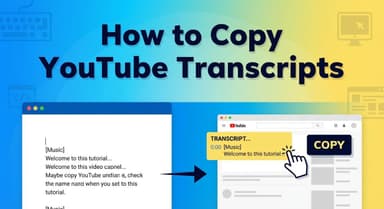
If you try to highlight the text in the sidebar to copy it, YouTube automatically copies the timestamps along with every single line of dialogue.
Example of what you get:
0:00 In this video we are going to...
0:04 talk about the best way to...
0:07 find a transcript.
You will have to manually delete these timestamps line-by-line. If you need a clean block of text, using an Online Transcript Generator (like the method in Part 1) is much faster.
Part 3: How to See Video Scripts on Mobile (iOS & Android)
If you are on the go, you can still access the transcript directly through the official YouTube app. This method works the same way for both iOS (iPhone/iPad) and Android devices.
Using the YouTube Mobile App

While the mobile interface is smaller, the transcript feature is tucked away inside the video description.
- Expand the Description: Tap the video title or the "…More" button located just below the video player window.
- Locate the Transcript Button: Scroll down past the description text. You will see a section labeled "Transcript" with a button that says Show Transcript.
- View the Script: Tap the button to open a sliding window. The text will highlight in sync with the video audio as it plays.
⚠️ Important Drawback: The mobile app is for viewing only. Unlike the desktop version, you cannot select or copy text from the transcript window in the mobile app. If you need to export the text, you will need to use an online generator via your mobile browser instead.
Part 4: Browser Extensions for Power Users
If you need video scripts daily—perhaps you work in SEO or research—copy-pasting URLs into an online tool might get repetitive.
For heavy users, installing a browser extension creates a permanent solution. These tools add a "Get Transcript" button directly next to the video player, saving you a few clicks per video.
Top Recommendation: YouTube Summary with ChatGPT & Glasp

While there are many extensions available, YouTube Summary with ChatGPT & Claude (powered by Glasp) is currently the gold standard. It is reliable and extracts the full text effectively.
How to set it up:
- Go to the Chrome Web Store (or Safari/Edge add-ons).
- Search for "YouTube Summary with ChatGPT & Claude."
- Click "Add to Chrome" to install it.
- Refresh your YouTube page. You will now see a "Transcript & Summary" box near the top right of the video player.
Pros & Cons of Using Extensions
Before installing third-party software, weigh the benefits against the drawbacks:
- The Good:
- Zero Friction: The transcript button is always there; no need to open a new tab.
- AI Integration: Many extensions let you send the script directly to ChatGPT to generate a summary.
- The Bad:
- Privacy Concerns: Extensions require permission to "read and change data" on websites you visit.
- Browser Bloat: Too many extensions can slow down your computer.
- Installation Required: Unlike online tools like Lynote, you cannot use this method on a public computer or a work device where you don't have admin rights.
Comparison Guide: Which Method Should You Use?
Choosing the right method depends entirely on what you plan to do with the text.
If you just need to check a single sentence, downloading a file is overkill. However, if you are turning a video into a blog post, the native YouTube sidebar will waste your time due to its messy formatting.
Use this quick matrix to find the right tool for your workflow:
| Your Goal | Best Method | Why?
| | --- | --- | --- | | Repurposing Content / Blog Writing | Lynote (Online Tool) | Removes timestamps and fixes line breaks so the text is ready to copy-paste. | | Fact Checking a Specific Quote | Native Feature | Fastest option. You can search (Ctrl+F) the sidebar without leaving the video tab. | | Offline Reading / Study Notes | Lynote (Download TXT) | Allows you to export the full script as a clean text file to read anywhere. | | Watching on Commute | YouTube Mobile App | The transcript syncs with the video playback, making it easy to read along on small screens. |
The Verdict for Creators
If you are a content creator, student, or researcher, the Online Generator (Lynote) is generally the better choice.
Native YouTube transcripts are "hard-coded" with timestamps on every single line. Trying to copy that text results in a disjointed block that requires massive manual editing. An AI-powered tool cleans that mess instantly, giving you a readable paragraph structure that is ready to use.
Frequently Asked Questions (FAQ)
Can I get a transcript if the video doesn't have CC?
Yes, in most cases. YouTube automatically generates captions for the vast majority of videos using speech recognition. Even if the creator has not manually uploaded a "Closed Caption" (CC) file, tools like Lynote can still extract these auto-generated captions. However, if a video is completely silent, a transcript cannot be generated.
How do I download the script as a text file?
The native YouTube interface does not have a "Download" button; it only allows you to copy text manually. To get a clean file, use an external tool. With Lynote, you can simply paste the video URL and click "Download TXT" to get a perfectly formatted script instantly.
Is it legal to use YouTube scripts for my content?
Be careful. The text of a video is technically the intellectual property of the creator (just like a book or blog post).
- Personal Use: Using a script for study notes or research is generally fine.
- Republishing: Copying a script word-for-word to your own blog without permission could violate copyright laws.
- Fair Use: Quoting small sections for commentary or critique is often considered "Fair Use," provided you cite the source.
Does this work for YouTube Shorts?
Yes. YouTube Shorts are just standard videos displayed vertically. Most transcript generators treat Shorts exactly the same as long-form videos. Just copy the URL of the Short and paste it into the generator to retrieve the text.
Conclusion
Finding a video script doesn't have to involve manual typing or endless scrolling through a tiny sidebar. While YouTube’s native features are great for a quick fact-check, they often fall short when you need clean, formatted text for studying or content creation.
If you are looking for the most efficient workflow, skip the copy-paste errors and timestamp clutter.
For the fastest, cleanest result without the hassle of creating an account, try the Lynote YouTube Transcript Generator today. It turns video into readable text in seconds, allowing you to focus on using the content rather than extracting it.