
How to Create a Transcript from Video (Free, Instant & No Sign-Up Methods)
Learning how to create transcript from video sources can save you hours of tedious manual typing. Whether you are a student looking for a specific quote, a researcher analyzing interviews, or a content creator repurposing a video into a blog post, you shouldn't have to hit "pause" and "rewind" a hundred times.

While YouTube has built-in tools, they are often clunky and hard to use. Fortunately, there are faster ways to get the job done.
Quick Verdict: The Best Way to Transcribe Videos
The "best" method depends entirely on your end goal. Do you need a quick quote for an essay, or are you editing a full-length documentary?
Here is a quick breakdown of the top methods compared by speed, cost, and utility.
| Method | Speed | Cost | Accuracy | Best For
| | --- | --- | --- | --- | --- | | Online Web Tools (e.g., Lynote) | Instant | Free | High | Students & Creators. Best for downloading clean text/SRT files without logging in. | | YouTube Native | Fast | Free | Medium | Quick Checks. Good for reading along, but difficult to copy/paste due to bad formatting. | | Desktop Software (e.g., Descript) | Slow | Paid | High | Video Editors. Ideal if you need to edit the actual video by deleting text. | | Browser Extensions | Fast | Free | High | Power Users. Great for summaries, though often requires API keys. |
The Editor's Choice
- For Instant Results: If you need a transcript right now without creating an account, Online Web Tools are the best choice. They handle the formatting for you, separating timestamps from text so you can copy-paste directly into your notes.
- For Heavy Editing: If you are a professional video editor, invest in Desktop Software. While slower to set up, it allows you to manipulate the video file itself using the text.
Part 1: The Best Online Transcript Generators (Fastest Method)
For most users, the goal isn't to edit a movie; it's to extract text immediately. Online generators are superior here because they run entirely in your browser. You don't need to install heavy software or learn a complex interface just to get a few quotes.
The Champion: Lynote YouTube Transcript Generator
If you need to convert a YouTube video to text immediately, Lynote is the most frictionless tool available. Unlike many competitors that force you to create an account or hand over your email address before showing results, Lynote is designed for instant access.
It fixes the biggest annoyance of the native YouTube transcript: formatting. Lynote extracts the speech and presents it cleanly, keeping timestamps separate so you don't have to manually delete them line by line.
How to get your transcript in seconds:
- Copy the URL of the YouTube video you want to transcribe.
- Navigate to the Lynote YouTube Transcript page.
- Paste the link into the input box and click "Generate."
- Review the text. You’ll see the dialogue clearly paired with precise timestamps.
- Click "Copy to Clipboard" to paste it into your notes, or hit "Download TXT" to save a clean file.

Why it wins: The tool leverages AI for accuracy, but its real advantage is the "No-Login" setup. You can grab a transcript, download it, and close the tab in less time than it takes to log in to other platforms.
Alternative Option: Otter.ai
While Lynote is excellent for YouTube links, Otter.ai is a strong alternative if your source material is a raw video file (like an MP4 or MOV on your hard drive).
Otter is widely used in business settings for recording meetings. It offers powerful speaker identification, meaning it can distinguish between "Speaker A" and "Speaker B."
The Verdict: Otter is powerful, but it adds friction. To use it, you must create an account, and the free plan limits how many minutes you can process per month. It is excellent for meeting notes but overkill for a quick video grab.
Part 2: The Official Method (YouTube Native Feature)
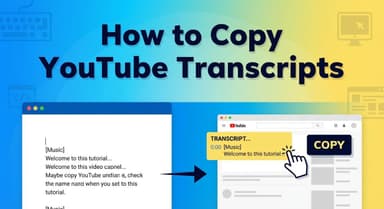
If you prefer not to use third-party tools, YouTube provides a built-in way to view captions. This method is reliable for reading along while you watch, but it is much less efficient if you want to copy the text for study notes.
How to Use YouTube's Built-in "Show Transcript"
This feature is available on almost every video that has Closed Captions (CC) enabled.
- Open the Video: Go to the YouTube video page.
- Expand the Description: Click the "More" text snippet located under the video title.
- Locate the Button: Scroll to the bottom of the description box and click "Show transcript."
- View the Text: A sidebar will open displaying the dialogue synced with timestamps.
The "Hidden" Flaw: Copy-Pasting is Difficult
While accessing the transcript is easy, using it is painful.
If you try to highlight the text in the side panel and copy-paste it into a document (like Word or Google Docs), you will run into formatting issues:
- Timestamp Clutter: Every single line includes a timestamp (e.g., 0:12, 0:15), which you cannot toggle off easily.
- Awkward Line Breaks: YouTube formats text as short subtitles. Your pasted text will look like a long, narrow list rather than paragraphs.
To make this text usable, you would have to manually delete hundreds of timestamps and fix line breaks one by one. This formatting headache is exactly why specialized tools like Lynote are preferred for research.
Part 3: Professional Desktop Software (For Editors)
If your goal is to edit the actual video content using text, web-based converters aren't enough. You need professional desktop software. These tools are designed for creators who want to cut silence or rearrange video clips by simply deleting words in the transcript.
The Champion: Descript
Descript has changed video editing by treating video files like a Word document. Instead of cutting waveforms on a timeline, you simply highlight text and hit "delete," and the corresponding video frames are removed instantly. It is available for both Windows and macOS.
How to transcribe and edit with Descript:
- Download and Install: Go to the Descript website, create an account, and install the app.
- Import Your Video: Drag and drop your video file into a new project.
- Automatic Transcription: Descript will process the audio. Within a few minutes, a full transcript will appear synced to your video.
- Edit the Text: You can now correct typos or delete sections of text. Watching the playback will confirm that the footage has been edited to match your text changes.
Note: While Descript offers a free tier, it is primarily a paid tool designed for heavy-duty content creation.
Alternative Option: Adobe Premiere Pro
For professional video editors already in the Adobe ecosystem, there is no need to leave the app. Premiere Pro features a powerful "Text-Based Editing" workflow.
By opening the Text panel and selecting "Transcribe Sequence," Adobe uses on-device AI to generate a transcript. You can click on any word to jump to that exact frame in the timeline or delete text to create cuts. This is the industry standard for filmmakers who need granular control.
Part 4: Browser Extensions (For Frequent Users)
If you need video transcripts multiple times a day, switching tabs might feel slow. For power users, browser extensions are a solid solution. They integrate directly into the YouTube interface, adding a "Get Transcript" button next to the video player.
Top Recommendation: YouTube Summary with ChatGPT
YouTube Summary with ChatGPT is a popular choice for Chrome and Safari users. It doesn't just pull the text; it integrates with OpenAI to provide instant summaries.
How to set it up:
- Go to the Chrome Web Store (or Safari extensions) and search for the extension name.
- Click Add to Chrome to install it.
- Open any YouTube video and refresh the page.
- Look for a new "Transcript & Summary" box in the top right corner.
- Click the down arrow to view the full text, or click the ChatGPT logo to generate a summary.
The Pros & Cons:
- Pros: Extremely fast access; you never have to leave the YouTube tab.
- Cons: It can be buggy if YouTube updates their site layout. Also, to use the advanced AI summary features, you often need to be logged into a ChatGPT account or provide your own OpenAI API key, which can be technical for casual users.
Comparison Guide: Which Method is Right for You?
Choosing the right tool comes down to friction versus features.
- Choose an Online Web Tool (Lynote) if you need a downloadable text file immediately and don't want to create an account.
- Choose the Official Native Method if you just need to read along while watching.
- Choose Desktop Software (Descript) if you are a video editor who needs to cut scenes by deleting text.
At-a-Glance Comparison
| Feature | Lynote (Web Tool) | Native YouTube | Descript (Desktop)
| | --- | --- | --- | --- | | Best For | Students & Researchers | Casual Viewers | Professional Editors | | Primary Goal | Extracting text for notes | Reading along | Editing video files | | Speed | Instant | Instant | Slow (Install required) | | Download Options | TXT File / Clipboard | None | SRT, VTT, DOCX | | Account Required? | No | No | Yes |
Why the "No-Login" Factor Matters
Most transcription tools promise free transcripts but force you into a "Freemium" trap. They ask for your email address or credit card details before you can see your result.
Lynote stands out as the only tool in this list that offers downloadable text files without asking for your personal data. If you are working on a paper or a blog post, you likely just want the raw text without managing another password.
Critical Tips for Transcript Accuracy & Usage
Getting the text from a video is only the first step. To ensure your transcript is usable for professional work or study notes, you need to understand how the data is generated.
Auto-Generated vs. Manual Captions
The accuracy of your output depends on the source of the subtitles.
- Manual Captions (CC): These are uploaded by the video creator. They are usually 99% accurate and include correct spelling of names and technical terms.
- Auto-Generated Captions: Most videos rely on YouTube's speech recognition AI. While impressive, it struggles with accents, fast speech, and background noise.
Pro Tip: Always do a quick "Find and Replace" scan on your transcript for proper nouns (names of people or companies) to ensure they were captured correctly.
Why Timestamps Are Essential
If you are a student or journalist, a transcript without timestamps is risky. You need to be able to verify quotes against the source material instantly.
- Fact-Checking: Timestamps allow you to jump to the exact second a statement was made to verify the context.
- Citing Sources: In academic writing, citing "Video Title at [04:20]" adds credibility.
- Video Editing: If you are editing a video based on the text, timestamps act as your "cut list."
Repurposing Transcripts for Content
A raw transcript is rarely ready to publish as a blog post. Spoken language is full of run-on sentences and filler words (um, ah, like).
To turn a transcript into high-value content:
- Remove Filler: Strip out the conversational pauses to make the text readable.
- Add Headers: Break the text into sections to improve readability.
- Summarize: Use the transcript as a rough draft. Rewrite the core arguments into a social media thread or LinkedIn post.
Frequently Asked Questions (FAQ)
Can I transcribe a video that doesn't have subtitles?
It depends on the tool. Most free extractors, including Lynote, rely on YouTube's auto-generated captions. Even if the creator didn't upload subtitles, YouTube usually generates them automatically. If the video has no audio or captions are disabled, you may need a specialized AI tool like Otter.ai to process the raw audio file.
Is it legal to download transcripts from YouTube?
Generally, yes—provided you use the text for personal use, study, or research. However, the script is the intellectual property of the video creator. You cannot simply copy the transcript, publish it on your own website, and claim it as your original work. Always cite the original video.
How do I convert the transcript to a Word document?
If you use Lynote, click the "Copy to Clipboard" button, open Microsoft Word (or Google Docs), and press Ctrl+V (Cmd+V on Mac). Alternatively, click "Download TXT" to save a file that opens directly in Word.
Can I transcribe long videos (1 hour+)?
Yes. Native YouTube interfaces often lag with long videos like podcasts. Lynote handles long-form content efficiently, extracting the full text with timestamps in seconds regardless of duration.
Conclusion
While YouTube’s native "Show Transcript" feature is a handy backup for quick checks, it falls short when you need usable, formatted text. The time you save by not installing software is lost if you have to spend an hour manually deleting timestamps and fixing line breaks.
For students, researchers, and content creators who value speed, dedicated extraction tools offer the best balance of accuracy and convenience. You shouldn't have to navigate paywalls just to get a simple text file.
Ready to grab your text instantly?
Stop fighting with messy copy-paste methods. Try the Lynote YouTube Transcript Generator now—it’s 100% free, handles long videos effortlessly, and requires no sign-up to get started.