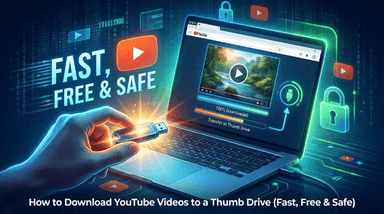

Can You Download YouTube Videos to Watch Offline? (Yes, Here’s How)
The short answer is yes. If you are wondering, "Can you download YouTube videos to watch offline?" the answer is straightforward. You have two primary options: purchasing a YouTube Premium subscription (the official method) or using a free online YouTube downloader to save MP4s directly to your device.
The method you choose depends entirely on how you plan to use the video:

- YouTube Premium lets you "rent" the video for offline viewing inside the YouTube app for up to 30 days.
- Online Downloaders let you own the file permanently. This means you can transfer it to a laptop, watch it on any media player, or save it to an external hard drive without restrictions.
A Quick Legal Note
Before you start, it is important to understand the difference between personal use and copyright infringement. While YouTube's terms technically prohibit downloading, saving a video for personal, offline viewing (often called "time-shifting") is generally tolerated. However, re-uploading someone else's content or using it to make money is strictly illegal.
Method 1: The Official Way (YouTube Premium)

The easiest answer to "Can I download this?" is found directly inside the YouTube app—provided you are willing to pay for it. YouTube restricts its built-in download button to subscribers of YouTube Premium.
When you subscribe, a "Download" button appears below the video player on mobile devices and tablets. Tapping this saves the video to your Library or Account tab. However, with Premium, you are essentially "renting" the ability to watch that video offline within their closed system.
Here is the breakdown of the official subscription method:
The Pros
- It Just Works: No need to copy-paste links. It is a one-tap solution.
- No Ads: Downloads are automatically free of interruptions.
- Supports Creators: A portion of your subscription fee goes to the YouTubers you watch.
The Cons
- It's Expensive: The standard plan starts around $13.99/month. That is a steep price if you just want to save a few videos for a flight.
- Files Are Locked: You cannot move these videos. They are encrypted cache files that only play inside the YouTube app. You cannot transfer them to a USB drive or play them on VLC.
- They Expire: Downloads do not last forever. You must reconnect your device to the internet at least once every 30 days, or the downloads will be deleted.
The Verdict
YouTube Premium is great for heavy users who watch hours of content daily and hate ads. However, for casual users who simply want to keep a tutorial or save a playlist for a trip without a monthly bill, the restrictions on file ownership can be frustrating.
Method 2: The Free Way (No Sign-Up Required)
If you don't want to pay a monthly fee, your best option is a third-party web downloader.
Unlike Premium, which gives you a temporary cached version, web downloaders convert the video into a standard MP4 file. This offers three distinct advantages:
- Ownership: You actually possess the file.
- Permanence: The video will never expire.
- Flexibility: You can move the file to a USB drive, a laptop, or watch it on any media player.
The Recommended Tool: Lynote YouTube Downloader
For a safe, fast, and high-quality experience, we recommend using the Lynote YouTube Downloader.

Many free sites are full of aggressive pop-up ads or malware risks. Lynote removes these barriers. It is completely free, requires no software installation, and allows you to download in 4K resolution—something many other tools charge for.
How to Download Videos (Step-by-Step)
Follow these simple steps to save any video directly to your device.
- Copy the Link: Open the YouTube video you want to save and copy the URL from the address bar (or tap "Share" > "Copy Link" on mobile).
- Open the Tool: Go to Lynote.ai/youtube-downloader in your web browser.
- Paste the URL: Paste the link into the conversion box on the homepage.
- Select Quality: Choose your desired format (MP4 for video, MP3 for audio) and resolution (e.g., 1080p or 4K).
- Download: Click the download button. The file will save directly to your device's "Downloads" folder.

How to Download Videos on Mobile (iPhone & Android)
A common mistake is thinking you need a specific app from the App Store or Google Play Store to save videos. You don't need an app.
Apple and Google frequently ban YouTube downloader apps. The few that survive are often full of ads or drain your battery. The smartest way to download videos on mobile is by using Lynote directly through your mobile browser (Safari or Chrome). It works exactly like the desktop version but is optimized for your phone.

For iPhone Users (iOS)
Downloading files on an iPhone used to be difficult, but the modern iOS "Files" app makes it simple.
- Open the YouTube app and copy the link of your video.
- Open Safari and go to Lynote.ai/youtube-downloader.
- Paste the link and hit the download button.
- When the pop-up appears, tap Download.
Where is my video?
Unlike Android, the video won't immediately appear in your "Photos" roll. It is saved to your Files app.
- Open the blue Files app on your home screen.
- Tap Browse > On My iPhone > Downloads.
- From here, you can watch it offline or tap the "Share" icon to save it to your camera roll.
For Android Users
Android's open file system makes this process incredibly fast.
- Copy the link from the YouTube app.
- Open Chrome and head to Lynote.
- Paste the link, select your quality, and download.
Where is my video?
Once the download finishes, you will see a checkmark in your notification bar. Tap that to open the video immediately. Alternatively, the file is stored in your Downloads folder, accessed through your "My Files" app or Google Photos library.
Why Quality Matters: 4K vs. 1080p vs. 720p

There is nothing worse than downloading a beautiful travel vlog, only to open it on your laptop and see a blurry mess. When watching offline—especially on a tablet or desktop—resolution is everything.
Many users assume a downloaded file will look exactly like it did on YouTube. Unfortunately, this isn't always true.
- 720p (HD): Okay for small smartphone screens, but looks grainy on laptops.
- 1080p (Full HD): The standard for crisp viewing on most monitors and tablets.
- 4K (Ultra HD): Essential for large screens to ensure every detail is sharp.
The "Free Tool" Trap
Here is the catch with most online converters: they often block high-quality downloads behind a paywall. You might go through the whole process only to find out the "Free" version limits you to 720p. If you want the crisp 1080p or 4K version, they ask you to pay.
Lynote YouTube Downloader supports 4K downloading for free. Unlike competitors that throttle your quality to push a subscription, Lynote allows you to select the highest available resolution without hidden fees.
Safety Check: Avoiding Malware and Scams

The world of free YouTube converters can be risky. While the goal is simply to save a video file, many low-quality sites are full of security flaws that can harm your device.
Before you click "Download" on a random site, look out for these three major red flags:
- The "Software Install" Trap (.exe Files): If a site says you need to install a program to grab a video, stop immediately. Installing unknown software is the fastest way to get a virus. A legitimate downloader works in the cloud, not on your hard drive.
- The "Free Trial" Credit Card Scam: Genuine free tools do not need your name, email, or credit card number. Never enter payment info for a "free" tool.
- Aggressive Pop-ups: If clicking "Convert" opens three new windows advertising betting sites, be careful.
Why Web-Based Tools Are Safer
The safest way to download content is using a solution that doesn't touch your operating system. This is why we recommend Lynote. Because it is entirely web-based, there is zero risk of infecting your computer. You aren't installing software, and the conversion happens on Lynote's servers. You simply get the clean MP4 file you asked for.
Comparison: YouTube Premium vs. Lynote Downloader

Choosing between the official subscription and a third-party tool comes down to access versus ownership.
With YouTube Premium, you are renting access. With Lynote, you own the file. Here is how they stack up:
| Feature | YouTube Premium | Lynote Downloader |
|---|---|---|
| Cost | $13.99/month | Free |
| File Type | Encrypted Cache (App only) | MP4 / MP3 (Universal) |
| Transferable | No (Locked to device) | Yes (USB, any device) |
| Expiry | 30 Days (Must reconnect) | Never |
| 4K Support | Yes | Yes |
The Verdict: If you want convenience and don't mind a monthly fee, Premium is solid. But if you need the video file for a presentation, want to transfer it to a device without the YouTube app, or simply want to keep content permanently for free, Lynote is the better choice.
Frequently Asked Questions (FAQ)
Is it legal to download YouTube videos?
It depends on how you look at it. YouTube’s Terms of Service prohibit downloading unless there is a download button (like in Premium). However, under Copyright Law, downloading a video for strictly personal, offline use is usually considered a grey area and is rarely pursued. Re-uploading or selling that content, however, is strictly illegal.
Does downloading videos use data?
Yes, but only once. Downloading the file uses about the same amount of data as streaming it once. The benefit is that once the file is saved, you can watch it a hundred times without using any data. Pro tip: Download your videos on Wi-Fi so you don't touch your mobile data plan.
Can I download just the audio (MP3)?
Yes. If you want to save a podcast or song, you don't need the heavy video file. Tools like Lynote let you select MP3 as your format, extracting just the audio to save space.
Where do the videos go on my computer?
- PC/Mac: Files usually go directly to your "Downloads" folder.
- Android: Check the "Downloads" folder in your File Manager.
- iPhone: Look in the Files app inside the "Downloads" folder.
Conclusion
You absolutely can download YouTube videos to watch offline. The choice comes down to whether you prefer renting or owning.
YouTube Premium provides a seamless experience within the app, but it comes with a monthly price tag and restrictions. On the other hand, using a video downloader gives you total control. You get a permanent MP4 file that works on any device, never expires, and costs you nothing.
Ready to build your offline playlist without a subscription? Try Lynote YouTube Downloader now for fast, free, and high-quality downloads.