
How to Add, Generate, and Extract Transcripts from YouTube Videos (Free & Fast)
Not all transcript methods serve the same purpose. Whether you are a student needing study notes, a marketer repurposing content, or a creator looking for how to add a transcript to a YouTube video to boost your SEO, the "best" method depends entirely on your goal.

Are you trying to get text out of a video, or put captions into one?
Here is a quick breakdown to help you choose the right workflow immediately:
Quick Verdict: The Best Ways to Get YouTube Transcripts
| Best For... | Recommended Method | Why It Wins | Speed |
|---|---|---|---|
| Instant Text Extraction (Notes, Blogs, Study) | Online AI Tools (Lynote) | Extracts clean, timestamped text. Removes the messy formatting found in native copy-pasting. | Fastest |
| Creators (Adding Captions) | YouTube Studio | The official way to upload .SRT files or manually type subtitles for your own videos. | Slow (Manual) |
| Quick Viewing (Reading Along) | Native "Show Transcript" | Built directly into YouTube. Good for checking a specific quote without leaving the page. | Instant |
The Bottom Line:
- If you need to save the text to a document or app, skip the manual copy-paste struggle and use an Online Generator like Lynote.
- If you are the video owner trying to fix your subtitles, you must use YouTube Studio.
Part 1: The Best Online Tools to Generate Transcripts (Fastest Method)
Most users searching for transcripts don't want to type out captions manually; they want to extract text from existing videos for notes, blog posts, or study guides.
While YouTube has built-in features, copying text from them is frustrating. You often end up with broken lines and weird formatting. Online transcript generators solve this by automatically cleaning up the text and retaining timestamps.
The Champion: Lynote YouTube Transcript Generator
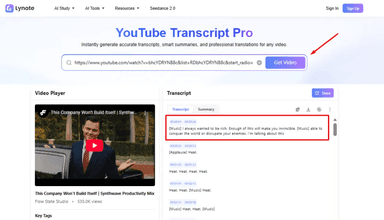
Lynote is designed for pure speed. Its main advantage over competitors is the hassle-free workflow: you do not need to create an account, sign up for a newsletter, or install software.
It pulls the video's official subtitles (or auto-generated captions) and formats them into a clean, readable block.

How to extract a transcript with Lynote:
- Copy the URL of the YouTube video you want to transcribe.
- Navigate to Lynote.ai/youtube-transcript.
- Paste the link into the input box and click "Generate."
- Once the text appears, click "Copy" to save it to your clipboard or "Export to TXT" to download the file directly.

OS Compatibility: Because Lynote is entirely web-based, this works on Windows, macOS, ChromeOS, and mobile browsers.
Alternative Options
If you are looking for heavy-duty editing suites rather than quick extraction, there are other players in the market.
- Otter.ai: Famous for meeting notes, Otter can transcribe video files. However, it focuses on recording live audio or uploading raw video files, which usually requires a paid subscription for higher volumes.

- Descript: A powerful audio/video editor. While excellent for creators editing podcasts, it requires you to download a desktop application and create an account.

The Verdict: Use Otter or Descript if you need to edit the video content itself. Use Lynote if you just need to grab the text immediately without logging in.
Part 2: How to View & Copy Transcripts Natively (The Free Manual Way)
If you don't want to use a third-party tool and just need to quickly check what was said, YouTube has a built-in feature for this. It is completely free, though it is designed more for viewing than for copying.
Using the "Show Transcript" Feature on Desktop
You can access the auto-generated or creator-uploaded captions directly within the YouTube interface. Here is the standard workflow for desktop users:

- Expand the Description: Open the YouTube video and click "...more" in the description box below the video player.
- Locate the Button: Scroll to the bottom of the description. Look for the "Show transcript" button and click it.
- View the Side Panel: A transcript panel will open on the right side of the screen (or below the video if you are in Theater Mode).
- Toggle Timestamps: By default, timestamps are shown. You can toggle them off by clicking the three dots in the top-right corner of the transcript panel.
- Manual Copying: Click and drag your mouse cursor from the top of the transcript to the bottom to highlight the text, then press Ctrl+C (Windows) or Cmd+C (Mac).
Why this method is difficult
While the native feature is great for jumping to a specific part of the video, it is notoriously bad for extracting notes. If you try to copy and paste the text into a Google Doc or Notion file, you will likely encounter several issues:
- Broken Formatting: The text often pastes as a narrow, vertical column rather than readable paragraphs.
- Tedious Highlighting: For long videos (like 1-hour lectures), manually dragging your mouse to highlight thousands of lines of text is slow and prone to errors.
- Ghost Formatting: Even if you toggle timestamps off visually, the formatting data often lingers, creating a messy paste that requires heavy editing to be readable.
If you need the text for study notes or content creation, this manual method usually creates more work than it saves.
Part 3: How to Add Transcripts to Your Own Video (For Creators)
Now that we've covered how to get text, let's look at the other side of the coin. If you are a content creator, adding accurate transcripts (Closed Captions) is essential for accessibility and video SEO.
While YouTube automatically generates captions for most videos, they are often riddled with errors. Manually correcting them or uploading your own ensures your message is clear.
The Official Method: YouTube Studio
YouTube provides a built-in workflow to manage subtitles. Here is the standard way to add them manually or upload a pre-written file:{{__IMG_TASK_4__}}

- Log in to YouTube Studio: Navigate to studio.youtube.com and select Subtitles from the left-hand menu.
- Select Your Video: Click on the video you want to edit.
- Add Language: Click the ADD button under the "Subtitles" column.
- Choose Your Input Method:
- Upload File: Best if you already have a .SRT or .SBV file with timestamps.
- Auto-sync: You paste the full script, and YouTube automatically aligns the text with your voice.
- Type Manually: You type the captions while watching the video (highly time-consuming).
Pro Tip: Using Lynote to Create the Text First
Typing captions from scratch inside YouTube Studio is slow. A faster workflow involves using Lynote to handle the heavy lifting before you ever open YouTube Studio.
The "Extraction Hack" Workflow:
- Extract: Paste your video URL into Lynote to instantly pull the auto-generated text.
- Edit: Copy the text into your favorite word processor (like Google Docs or Word) to quickly fix spelling errors, capitalization, and punctuation.
- Paste: Go back to YouTube Studio, select "Auto-sync," and paste your corrected script.
YouTube will automatically align your polished text with the video timing. This method saves hours of manual typing.
Part 4: How to See Transcripts on Mobile (Android & iOS)
With so many YouTube views coming from mobile devices, knowing how to access captions on the go is essential. Fortunately, the interface is nearly identical for both Android and iPhone (iOS) users.
The Native App Method
YouTube hides the transcript deep within the video description. Follow these steps to reveal it:
- Open the Video: Tap on the video you want to watch in the YouTube mobile app.
- Expand the Description: Tap the video title or the word "...More" located just below the video player.
- Find the Button: Scroll down past the description text until you see the "Show Transcript" button. Tap it.
- View the Text: A panel will slide up showing the full transcript. You can tap on any specific line to jump the video to that exact timestamp.
The Catch: You Can’t Copy Text
While the mobile app is great for reading along, it has a significant flaw: You cannot highlight or copy the text.
If you try to press and hold on the transcript lines, nothing happens. This makes it impossible to save quotes or notes directly from the app.
The Workaround:
If you need to extract the text while on your phone, you must leave the app.
- Tap Share > Copy Link on the video.
- Open your mobile browser (Chrome or Safari).
- Go to Lynote.ai and paste the link to generate a downloadable text file instantly.
Part 5: Browser Extensions for Power Users
If you find yourself needing transcripts for every single video you watch, installing a browser extension can integrate the process directly into the YouTube interface. This method is ideal for "Power Users" who want immediate access without switching tabs.
Top Recommendation: YouTube Summary with ChatGPT & Claude
The standout tool here is YouTube Summary with ChatGPT & Claude (by Glasp). It overlays a transcript box directly onto the video player page, allowing you to view the text or send it to an AI model for summarization.

How to Install and Use:
- Navigate to the Chrome Web Store and search for "YouTube Summary with ChatGPT."
- Click Add to Chrome and pin the extension to your browser toolbar.
- Open any YouTube video. You will see a new "Transcript & Summary" box appear in the top right corner.
- Click the Copy Icon to grab the text.
The Critique:
While excellent for researchers, this method has some friction. To use the AI summarization features effectively, you generally need to be logged into your own ChatGPT or Claude account in a separate tab. If you prefer not to manage API keys or want to extract text without logging into third-party accounts, a web-based tool like Lynote remains the simpler option.
Comparison: Manual Copying vs. AI Generators
Choosing the right method depends on what you intend to do with the text. If you simply need to verify a specific quote, the native YouTube feature is sufficient. However, if formatting matters to you, the decision becomes easier.
Quick Decision Matrix
| Criteria | Lynote (AI Tool) | YouTube Native (Manual) | Paid Software (Otter/Descript) |
|---|---|---|---|
| Speed | Instant (Copy-Paste URL) | Instant (Click Button) | Slow (Requires upload/processing) |
| Formatting | Clean (Paragraphs & Timestamps) | Messy (Broken lines/No punctuation) | High Quality (Speaker detection) |
| Timestamp Accuracy | High | High | High |
| Cost | Free | Free | $$$ (Subscription required) |
| Account Required | No | Yes (Google Account) | Yes (Sign-up required) |
- Use YouTube Native ("Show Transcript") if you only need to read along while watching.
- Use Lynote (AI Generator) if you need to extract and use the text. It preserves timestamps and formatting without forcing you to log in or pay.
- Use Paid Software only if you are the video creator and need to edit the actual video file based on the transcript.
FAQ: Common Questions About YouTube Transcripts
Q: Can I download a YouTube transcript as a text file?
Yes, but not natively. YouTube allows you to view the transcript, but it does not offer a "Download as .txt" button for viewers. To get a clean file, you should use a third-party tool like Lynote which provides a dedicated Export to TXT button.
Q: How do I get the transcript of a video that doesn't have CC?
If a video does not have a "CC" icon, it usually means the creator has disabled subtitles or YouTube's auto-captioning hasn't processed the video yet. In this case, most extractor tools won't work. You will need to use a speech-to-text recorder (like Otter.ai) and play the video out loud to let the software "listen" and transcribe it in real-time.
Q: Is it legal to download and use transcripts?
Generally, generating a transcript for personal use, study, or accessibility falls under "Fair Use." However, the content of the script belongs to the video creator. You typically cannot download a transcript and republish it word-for-word as your own blog post without permission.
Q: How do I convert a YouTube video to text without watching it?
This is the primary use case for AI transcript generators. Simply copy the video URL, paste it into Lynote, and click Generate. The tool pulls the text data directly from the server, allowing you to read the content of a 20-minute video in under two minutes.
Conclusion
Accessing the text inside a YouTube video creates endless opportunities for repurposing content and studying faster. While YouTube’s native "Show Transcript" feature is functional, it often slows you down with unformatted text blocks that are difficult to use.
You shouldn't have to spend twenty minutes formatting a text file just to get a clear summary of a ten-minute video.
For a workflow that actually respects your time, skip the manual copy-pasting. Use the Lynote YouTube Transcript Generator to instantly extract, format, and export your video transcripts for free. Whether you need clean study notes or a script for your next blog post, getting the accurate text you need is now just one click away.